
IndiaFilings
Published on: Jul 30, 2026
How to File GSTR-9 Annual Return on GST Portal
The GST portal allows registered taxpayers to file their GSTR-9 annual return online. While taxpayers can prepare GSTR-9 using the offline tool, filing must be done online, which often involves significant manual effort. IndiaFilings offers a cloud-based, end-to-end solution for seamless, accurate, and hassle-free filing of GSTR-9.
This article covers:
- Who must file GSTR-9
- Prerequisites for filing GSTR-9
- Step-by-step guide for filing GSTR-9 on the GST portal
- How IndiaFilings simplifies the process
- Latest updates on GSTR-9 filing
Who Must File GSTR-9?
The following taxpayers are required to file GSTR-9 for a financial year:
- Normal GST taxpayers, including SEZ units and SEZ developers.
- Composition taxpayers who opted out of the scheme mid-year and continue under GST.
- Taxpayers who transitioned from VAT to GST in the first financial year of GST implementation.
Exemptions: The following are not required to file GSTR-9:
- Taxpayers under the composition scheme (they must file GSTR-9A)
- Casual taxable persons
- Input service distributors
- Non-resident taxable persons
- Persons paying TDS under Section 51 of the CGST Act
- Persons collecting TCS under Section 52 of the CGST Act
Example: Mr. A, previously registered under VAT, registered as a normal GST taxpayer on 1st October 2023, and opted for the composition scheme on 1st January 2024:
- GSTR-9: 1st Oct – 31st Dec 2023
- GSTR-4: 1st Jan – 31st Mar 2024
- Thereafter, GSTR-4 must be filed annually until opting out of the scheme.
Prerequisites for Filing GSTR-9
Before filing the GSTR-9 annual return, taxpayers must ensure the following:
- The taxpayer must be registered as a normal taxpayer under GST for at least one day during the financial year.
- The taxpayer must have filed all GSTR-1 and GSTR-3B returns for the financial year prior to filing the annual return.
- Table 6A will be auto-populated from the data reported in GSTR-3B and cannot be edited.
- Table 8A will be auto-populated based on details from GSTR-2B and is also non-editable.
- Table 9, which contains details of tax paid during the financial year, will be auto-filled based on information from GSTR-3B. The columns ‘Paid through Cash’ and ‘Paid through ITC’ are non-editable.
- The taxpayer must report the following details for the financial year in the annual return:
- Outward supplies
- Inward supplies
- Taxes paid
- Refunds claimed
- Demands raised
- Input tax credit (ITC) availed and utilized
Step-by-Step Guide to Filing GSTR-9
Follow this step-by-step guide to accurately file your GSTR-9 annual return and ensure full GST compliance.
Step 1: Login and Navigate to GSTR-9
Log in to the GST Portal and go to the Returns Dashboard. Click on ‘Annual Return’. Alternatively, you may also access it directly from your dashboard.
On the ‘File Annual Returns’ page, select the relevant Financial Year.
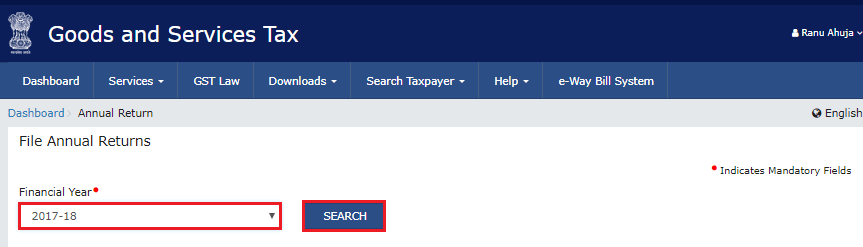
A pop-up message will appear, providing instructions for online or offline filing of GSTR-9. Click on ‘Prepare Online’ to proceed.
.webp)
Step 2: Select Between NIL Return or Annual Return with Data
You will be prompted to choose whether to file a NIL return for the financial year. Click ‘Yes’ or ‘No’
Select ‘Yes’ only if all of the following conditions are met:
- No outward supplies were made.
- No receipt of goods or services occurred.
- No other liabilities to report.
- No input tax credit has been claimed.
- No refunds were claimed.
- No demand orders were received.
- No late fees are applicable.
If ‘Yes’ is selected, click ‘Next’ to compute liabilities and file a NIL GSTR-9.
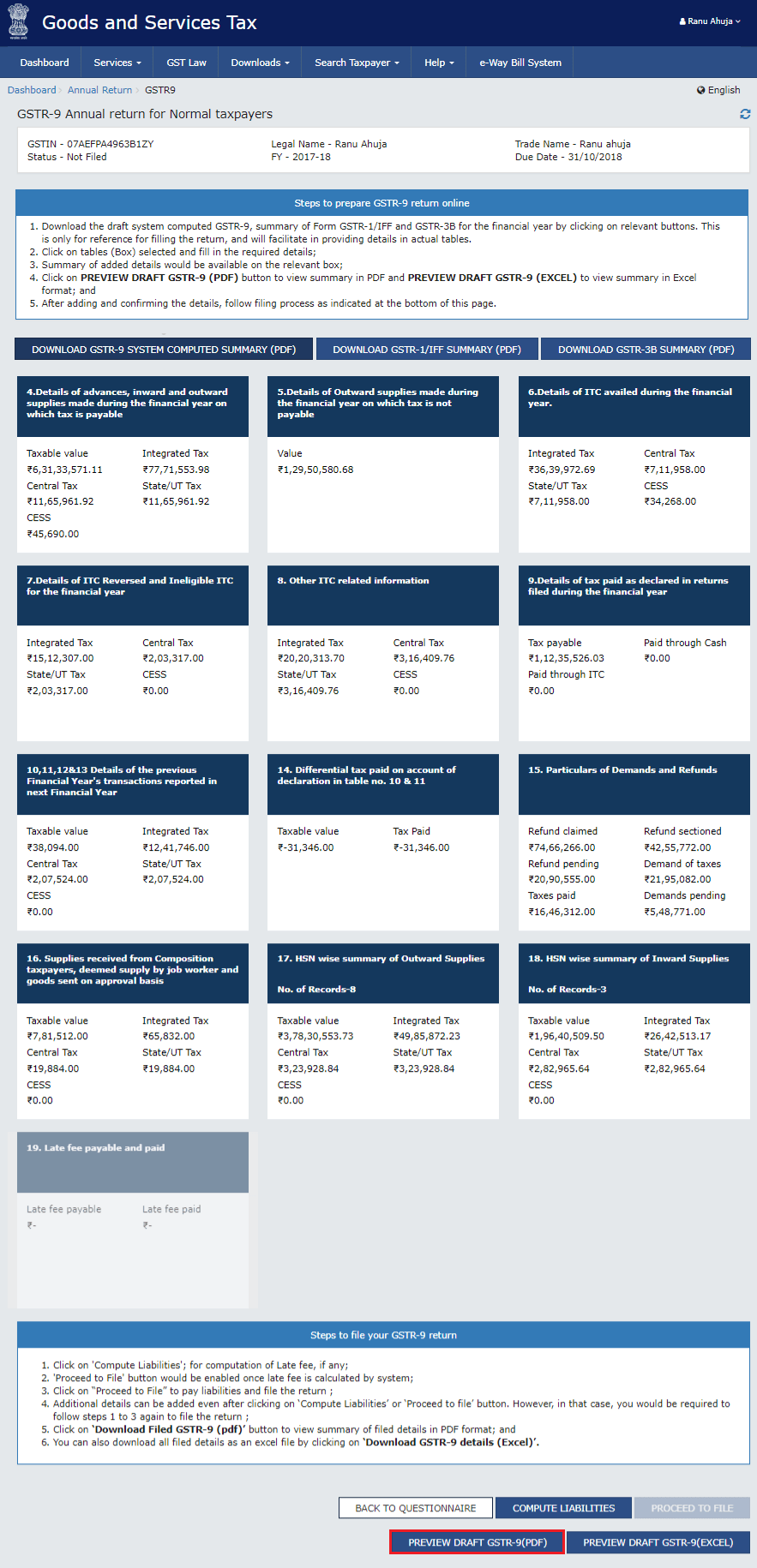
If ‘No’ is selected, click ‘Next’. The ‘GSTR-9 Annual Return for Normal Taxpayers’ page will appear, displaying various tiles where details must be filled.
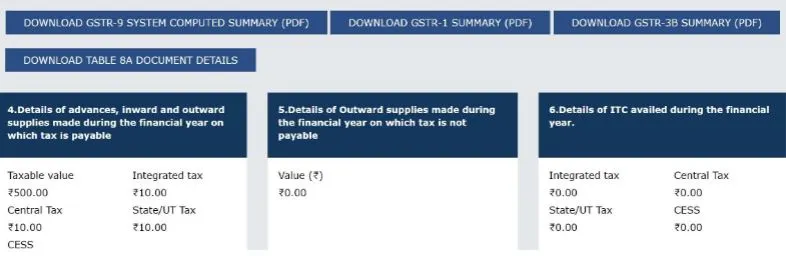
Download the following four documents from their respective tabs:
- GSTR-9 System Computed Summary
- GSTR-1 Summary
- GSTR-3B Summary
- Table-8A Document Details
These summaries assist in reconciliation and provide a clear reference for filling in the necessary details in the GSTR-9 tiles.
Step 3: Enter Details in the Relevant Tables for the Financial Year
Tile: Details of Advances, Inward and Outward Supplies (Table 4)
Click on the Table 4 tile. The data will be auto-populated based on information from your GSTR-1 and GSTR-3B filings.
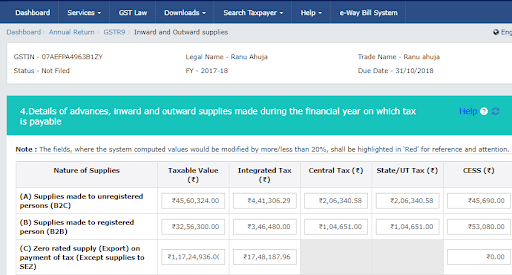
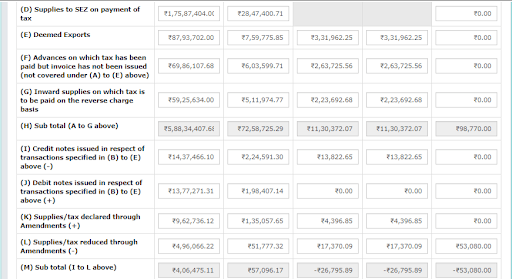

Edit cells or enter tax values as required.
- If the entered details differ by more than ±20% from the auto-populated values, the cells will be highlighted, and a confirmation message will appear asking whether to proceed despite the deviation.
- Click ‘Yes’ to confirm.
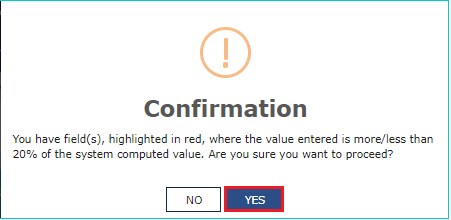
- A success message ‘Save request is accepted successfully’ will appear.
- Return to the GSTR-9 Dashboard—the Table 4 tile will now reflect the updated information.
Repeat this process for the following tables:
- Table 5M: Outward supplies on which tax is not payable
- Table 6(O): ITC availed during the financial year
- Table 7(I): ITC reversed and ineligible ITC
- Table 8(A): Other ITC-related information
- Table 9: Tax paid as declared in returns filed during the year
- Tables 10, 11, 12 & 13: Previous financial year’s transactions reported in the next year
- Tables 10 & 11: Differential tax paid on account of declarations
- Table 15: Particulars of demands and refunds
- Table 16: Supplies received from composition taxpayers, deemed supplies by job worker, and goods sent on approval basis
- Table 17: HSN-wise summary of outward supplies
- Table 18: HSN-wise summary of inward supplies
Notes:
- Auto-populated data from GSTR-1 and GSTR-3B can generally be edited except for Tables 6(O), 8(A), and 9, which are non-editable.
- For invoice-wise details of Table 8A, click the ‘Download Table 8A Document Details’ button under the instructions in the GSTR-9 form.
Step 4: Preview Draft GSTR-9 in Excel or PDF Format
Taxpayers can preview their GSTR-9 form in PDF or Excel format before final submission.
Preview in PDF:
- On the GSTR-9 Dashboard, click ‘Preview GSTR-9 (PDF)’.
- A draft PDF of the GSTR-9 will be downloaded.
- Review the draft carefully. If any changes are needed, make the edits online in GSTR-9 and then regenerate the PDF.
Preview in Excel:
- On the GSTR-9 Dashboard, click ‘Preview GSTR-9 (Excel)’.
- A draft will be generated, and a download link will appear.
- Click the link to download a ZIP file, then extract the Excel file containing the summary of GSTR-9.
- Review the Excel draft. If any modifications are required, edit GSTR-9 online and regenerate the Excel draft.
Step 4: Compute Liabilities and Late Fees
Click ‘Compute Liabilities’ on the GSTR-9 dashboard. The GST portal will process all the details entered in the various tables and calculate the tax liability.
If there is a delay in filing, late fees will also be calculated automatically.
Once the computation is complete, a confirmation message will appear, allowing you to proceed with filing.
Payment of tax and/or late fees can be made using the electronic cash ledger.
If the ledger balance is insufficient, additional payment can be made via:
- Net banking
- Over-the-counter payment
- NEFT/RTGS, by generating an additional payment challan
Note: GSTR-9 cannot be filed until any applicable late fees are fully paid. After payment, taxpayers should preview the draft GSTR-9 again in PDF or Excel format, following the steps described in the previous step, to ensure all details are correct.
Step 5: Review the Draft GSTR-9
After computing liabilities and late fees, it is essential to review the draft again. At this stage, the draft will reflect all the details of tax, late fees paid, and payable. Ensure all information is accurate before proceeding to file.
Step 6: File GSTR-9
Select the Declaration checkbox and choose the Authorised Signatory.
Click ‘File GSTR-9’. A submission page will appear with two filing options:File with DSC (Digital Signature Certificate):
- Browse and select your DSC certificate.
- Sign and submit.
File with EVC (Electronic Verification Code):
- An OTP will be sent to your registered email and mobile number.
- Validate the OTP to complete filing.
- Upon successful validation, the return status changes to ‘Filed’.
Important Notes:
- If any errors are detected in the records, a warning message will appear. These errors can be resolved by revisiting the affected tables and making corrections.
- Additional payments, if any, can be made via Form DRC-03; the link will be displayed after successful filing.
- Once filed, an ARN (Acknowledgment Reference Number) is generated, and the taxpayer will receive a confirmation via SMS and email.
- GSTR-9 cannot be revised after filing. There is no option to rectify errors once the annual return is submitted.
Data Sourcing for Accurate GSTR-9 Reporting
To ensure accurate reporting in GSTR-9, businesses should leverage the following reports and comparison analyses:
- Outward Supplies:
- Compare yearly GSTR-1 vs GSTR-3B vs accounting books.
- Reconcile e-Way bills, sales register, and GSTR-1.
- Inward Supplies:
- Compare yearly GSTR-2B vs GSTR-3B vs accounting books.
- Check supplier GSTR-1 status and vendor compliance.
- Input Tax Credit:
- Reconcile yearly GSTR-3B vs GSTR-2A.
- Verify sales e-Invoices (GSTN) vs sales register vs GSTR-1.
- Taxes Paid, Refunds, and Demands:
- Report taxes paid, refunds claimed, and any demand orders raised.
These reports can be generated at the PAN level or multi-GSTIN level to ensure comprehensive and accurate reconciliation for GSTR-9.
Checklists for Sales and Input Tax Credit (ITC) Reporting in GSTR-9
To simplify GSTR-9 filing, taxpayers should follow two key checklists for sales and input tax credit (ITC) reporting before filing the return. Accurate reporting is critical because GSTR-9 cannot be revised once filed.
Note: Any differences between tax payable and tax paid after reconciliations must be reported under Table 14 of GSTR-9. This checklist applies regardless of whether the return is prepared online, offline, or through GST filing software.
Key Checkpoints for Sales Reporting
- Correct Reporting of B2C and B2B Sales: Ensure all B2C and B2B sales are accurately reported in GSTR-1 and GSTR-3B as per the books of accounts.
- Tax Head Accuracy: Identify supplies correctly recorded but with tax paid under an incorrect head.
- HSN Classification: Verify that HSN codes for goods and services are complete and accurate.
- Reconcile GSTR-1 and GSTR-3B Tax Liability: Identify differences in tax liability between GSTR-1 and GSTR-3B to prevent duplication or missed reporting.
- Export Data Verification: Match export details in Table 6A of GSTR-1 with GSTR-3B and shipping bills from ICEGATE.
- E-Invoice Accuracy: Ensure all applicable e-invoices have been generated and reported in GSTR-1.
- Table Reporting Accuracy: Identify supplies reported under incorrect tables in GSTR-3B compared to GSTR-1.
- Revenue Ledger Alignment: Maintain the revenue and output tax general ledger in line with the sales register, except for exceptional items like intra-PAN transactions.
- Inter-State Supplies: Check if any interstate supplies made to unregistered persons were omitted from GSTR-3B.
Important Checkpoints for ITC Reporting
- Reversal of Ineligible ITC: Reverse any input tax credit (ITC) that is ineligible, whether temporary or permanent. Ensure reporting of any missed reclaims from that financial year. Refer to CGST Rules 37, 42, 43, etc.
- Reconciliation of GSTR-2A/2B vs GSTR-3B: Reconcile ITC appearing in GSTR-2A/2B for the relevant periods but not reflected in the filed GSTR-3B, including TDS and TCS credits, and report discrepancies.
- Vendor-wise Reconciliation: Identify cases where ITC claimed in earlier returns must now be reversed due to underreporting by vendors for FY 2023-24, and communicate with the respective vendors.
- Adjustments via Debit/Credit Notes: Report any adjustments to ITC resulting from debit or credit notes issued by vendors in FY 2023-24 against purchase invoices for the financial year.
- Verification of Vendor Tax Deposits: Ensure that vendors have deposited the corresponding taxes with the government for FY 2023-24.
- Reverse Charge Mechanism (RCM): Verify taxes payable versus those paid under RCM and pending ITC claims for the financial year for goods and services used in the business.
- Filing Amendments: File amendments for rectified information reported in GST returns filed during the financial year.
- Cross-Verification with Income Tax Return (ITR): Compare the annual ITR with the GSTR-9 to identify discrepancies.
- Purchase Register & Expense Ledger Review: Check the purchase register and various expense ledgers (e.g., bank charges, stock insurance premiums) to identify omissions in GSTR-3B or necessary adjustments.
- General Ledger Alignment: Ensure the purchases and input tax general ledger aligns with the purchase register, except for exceptional items such as intra-company stock transfers or cross-charges.
Latest Updates
53rd GST Council Meeting (June 2024): Taxpayers with aggregate turnover below ₹2 crore for FY 2023-24 are exempted from filing GSTR-9/9A, as per CGST Notification 14/2024 dated 10th July 2024.
Why Choose IndiaFilings for Filing Your GST Annual Return (GSTR-9)?
- Expert Guidance: IndiaFilings provides professional assistance from GST experts, ensuring your annual return is accurate and compliant with all regulations.
- Time-Saving: The streamlined process reduces the effort and time required for reconciling data and preparing the return.
- Error-Free Filing: Automated checks and reconciliations minimise mistakes, giving you confidence in your filing.
- End-to-End Support: From ITC reconciliation to tax payment and filing, IndiaFilings handles the entire process on your behalf.
- Compliance Guarantee: Stay fully compliant with GST rules and avoid penalties with expert oversight.
- Cloud-Based Convenience: File returns online anytime, with easy access to all past records and documents.
- Secure and Reliable: Your financial data is protected using advanced security measures, ensuring confidentiality and safety.