
Sreeram Viswanath
Expert
Published on: Apr 21, 2026
emSigner for GST
emSigner is an utility which is used to sign, send, track, archive and manage smart documents. The utility paves the way for a faster and secured signing of documents. Moreover, it allows the user to encrypt the documents, thereby ensuring the safety of vital data. emSigner is used for digitally signing the GST registration application and GST return filing in the common GST portal. Hence, before installing and using emSigner, ensure that the DSC is registered on the GST Portal. Know more about how to register DSC on GST Portal.System Requirements
In case you are having problems while installing emSigner, ensure that you have the following system requirements of emSigner:
- Windows 32 / 64 bit OS
- Java 1.6 JRE 1.6.0_38+, Java 1.7, Java 1.8
- Windows: Admin access to install the emSigner component
- Any of the ports among 1585, 2095, 2568, 2868 or 4587 is free.
Most of the issues in installation of emSigner happens due to incompatible OS or Java version.
Downloading emSigner
The utility can be downloaded by following the process which is described below: Step 1:- Visit the official website of GST, and after logging into your profile, click on “Register/Update DSC”.
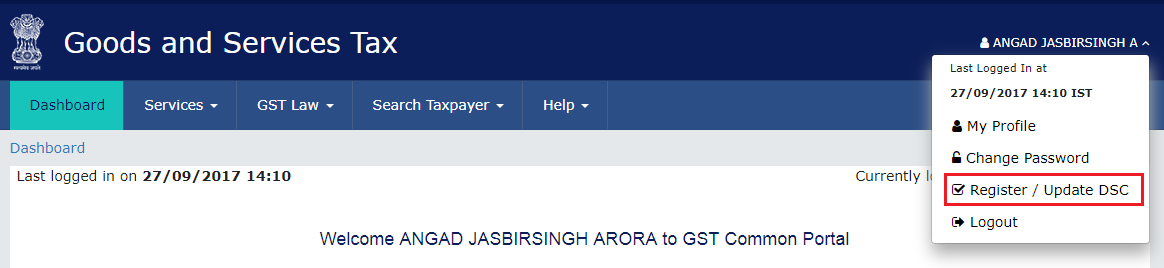 emSigner Step 1
Step 2:- You will be taken to the registration page of DSC. Select the option “Click here for instructions on installing signer utility link”.
emSigner Step 1
Step 2:- You will be taken to the registration page of DSC. Select the option “Click here for instructions on installing signer utility link”.
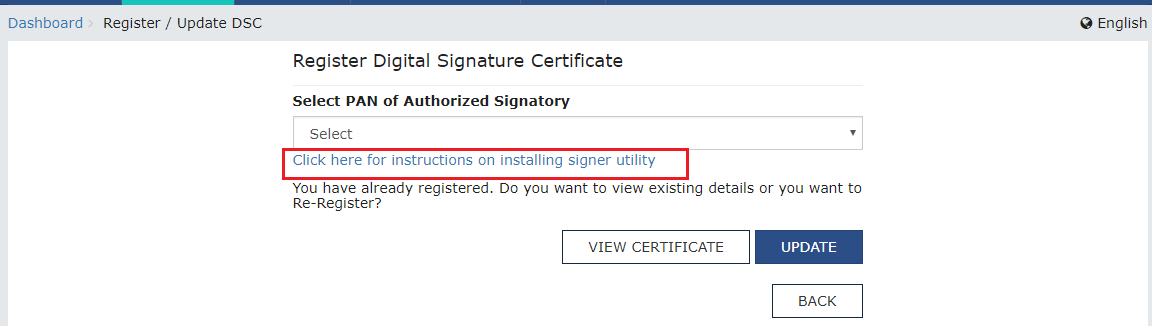 emSigner Step 2
Ste
emSigner Step 2
Ste
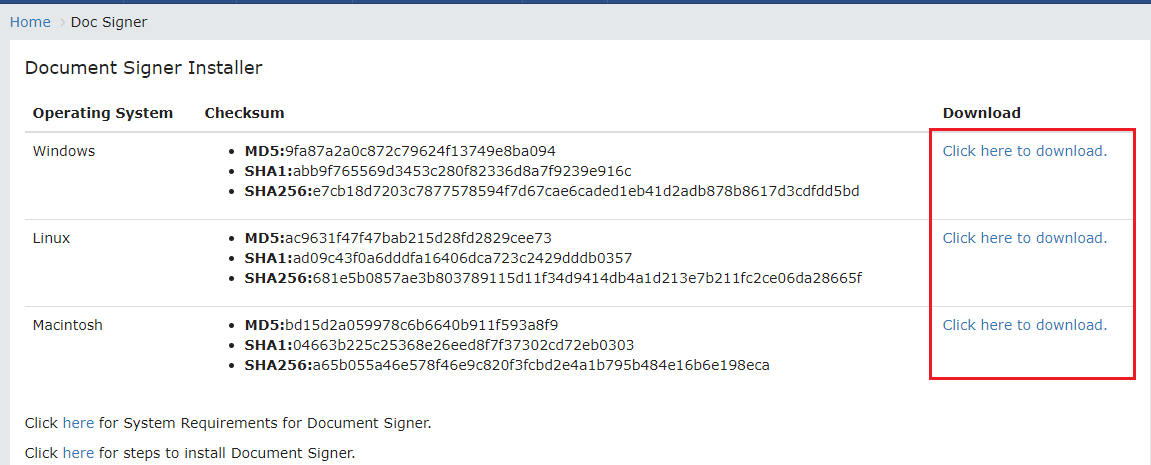 emSigner Step 3
p 3:- The download link will be provided along with the system specifications. Choose the one which matches with your system and download the same. Complete the installation on your system using the steps below.
emSigner Step 3
p 3:- The download link will be provided along with the system specifications. Choose the one which matches with your system and download the same. Complete the installation on your system using the steps below.
Installing emSigner
The download software must be installed into the system before you can utilize it. The process of installation can be completed in the manner as specified below: Step 1:- Open the file which was downloaded. Step 2:- In the installation wizard, click on the next button. Step 3:- Right click on the installed application, and select ‘Run as administrator’. Step 4:-The above step will effectively start the service to complete the registration of DSC in GST portal. As simple as that, the installation process is now complete. You may begin using the application. Note: - Installing the software requires the permission of the administrator. Hence, ensure that your administrator has approved the installation before starting the installation process. Know more about procedure to
register DSC on MCA Portal.