
IndiaFilings
Expert
Published on: Jul 30, 2026
How to Create a GST Estimate? - LEDGERS Guide
You can easily create a GST ready estimate using
LEDGERS software by following the following steps:- Login to your LEDGERS account. You can log in using this link.
- Once you have logged in to your account, select the business you would like to create an estimate.
- Go to Sales -> Create Estimate.
Note: Before starting to create an estimate, ensure that the Goods and Services master is populated with information about the goods and services supplied by your business. Also, update the business address information under Business -> Settings to begin creating estimates or invoices using LEDGERS.
GST Estimate vs GST Invoice
Estimates should be created instead of an invoice when payment has not been received from the customer AND goods or services have not been supplied. The moment an invoice is created, the liability to pay
GST arises on the business, irrespective of the status of payment by the customer. Hence, estimates are to be provided as a pre-cursor to GST invoice, before payment or start of supply of goods or service. Read the Guide to GST Invoices. Procedure for creating a GST invoice.Customer Data is Available
If customer data and goods/services information are updated on LEDGERS, then you can create an estimate in less than a minute. Just select the customer from the drop-down and the system will show the default billing and shipping address for the customer. You can then proceed to select the item from the select product drop down. Based on the shipping address of your customer and your principal place of business, CGST, SGST or IGST is automatically calculated by the system.
Customer Data NOT Available
If you have not updated the customer information before starting to create an estimate, then you can click on the + Icon next to the customer name to create a customer account. On updating the customer information in the pop-up, the information is auto-populated into the invoice.
Reverse Charge Applicable?
In case GST is payable on reverse charge basis, you can select Reverse Charge is Applicable to account the invoice under reverse charge basis. You can also mark if the invoice is made to a customer in a SEZ zone or if the supply is made through an e-commerce operator. Supplies made through e-commerce operators must be mentioned separately on the GST return and TCS must be deducted by the e-commerce platform.
Create GST Estimate
Once you have verified all the information as shown on the screen, you can click on the Create Estimate button to create the estimate. After the GST estimate is created, the estimate will not be editable. By clicking on the print icon at the top corner, you can print a copy of the invoice or save the document as a PDF. You can also email the invoice to your customer by clicking on the email button. To convert an estimate into an invoice, you can again click on the convert icon to populate an invoice. Know more about
creating a GST invoice.Sample GST Estimate Created Using LEDGERS
A sample GST estimate created using LEDGERS GST software is shown below:
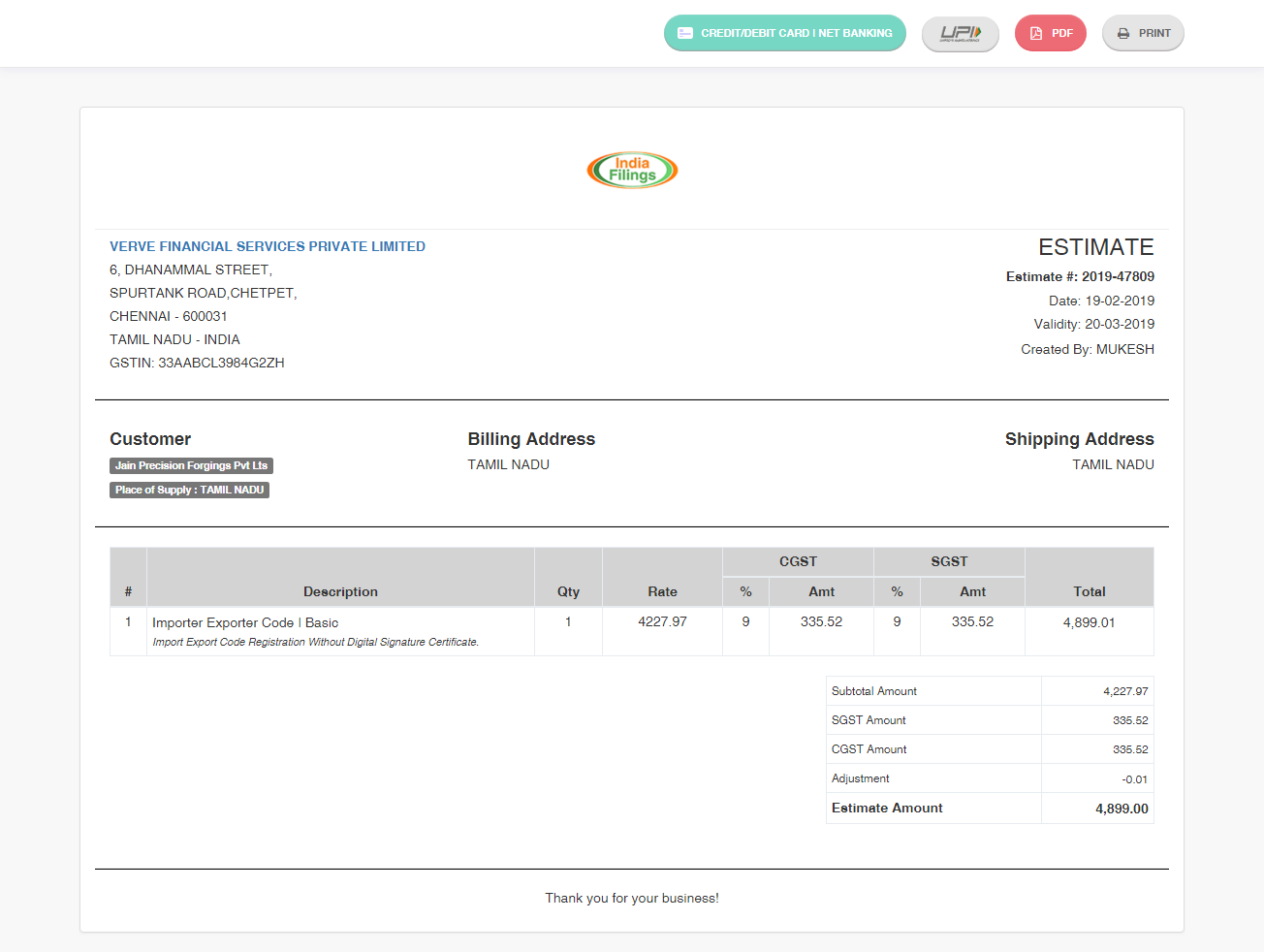 GST Estimate
Video Guide to Creating GST Estimate
You can refer to the following video guide for creating a GST estimate using LEDGERS GST software.