
IndiaFilings
Expert
Published on: Jul 30, 2026
How to Create a GST Purchase Invoice - LEDGERS
Purchase invoices are created by business customers to record expenses. For example, if a business had purchased Rs. 1 lakh worth of Chairs from a supplier and paid 18% GST on the supply, the supplier would issue a tax invoice. The customer would then record the expenditure in a purchase invoice to claim input tax credit and setoff GST liability. Thus, to
file GSTR-2 GST return, the taxpayer must record all purchases made by creating purchase invoice on LEDGERS GST Software.Creating a Supplier
Before creating a
GST purchase invoice on LEDGERS GST Software, ensure that the supplier is added to the list of suppliers with the business. To add a supplier, click on Contacts -> Suppliers -> Add Supplier.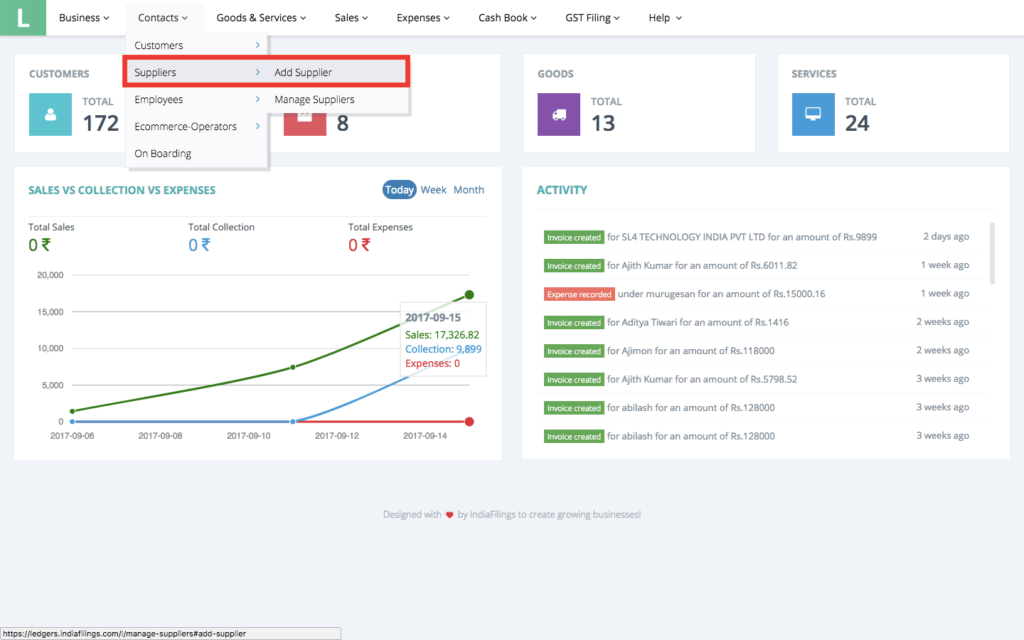 Add Supplier
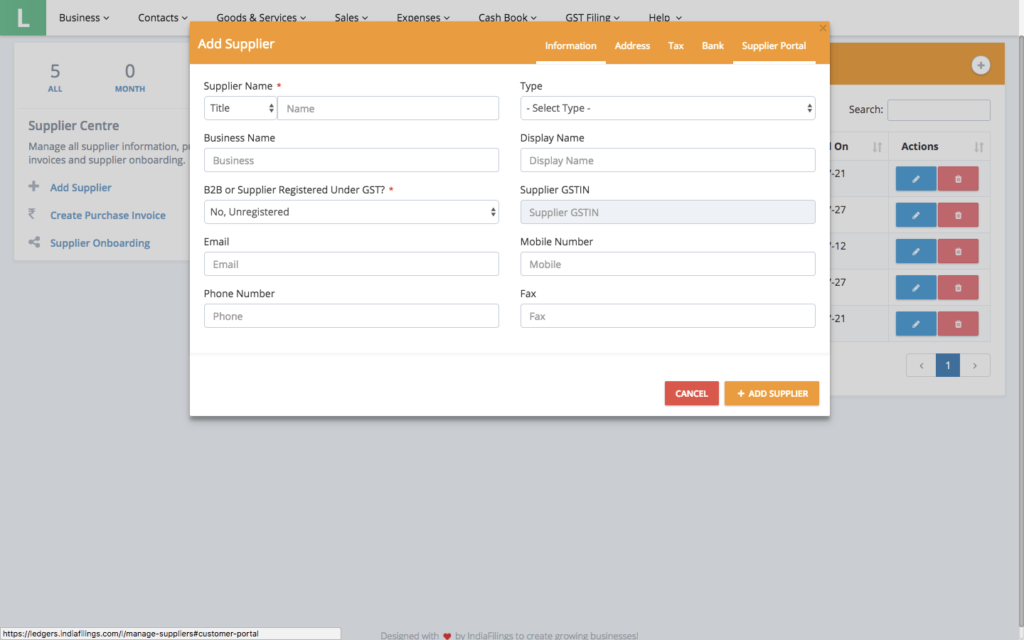
In the add supplier window, enter details of the supplier available. In case all the details are not available, you can use the "Supplier Onboarding" feature to automatically collect the required information from the supplier.
For claiming GST Input Tax Credit, the suppliers GSTIN must be updated. Hence, if the supplier is registered under GST, ensure that GSTIN is updated.
Once all the available information is updated, click on Add Supplier to create an account for the supplier.
Add Supplier
In the add supplier window, enter details of the supplier available. In case all the details are not available, you can use the "Supplier Onboarding" feature to automatically collect the required information from the supplier.
For claiming GST Input Tax Credit, the suppliers GSTIN must be updated. Hence, if the supplier is registered under GST, ensure that GSTIN is updated.
Once all the available information is updated, click on Add Supplier to create an account for the supplier.
 Supplier Onboarding
Creating Purchase Invoice
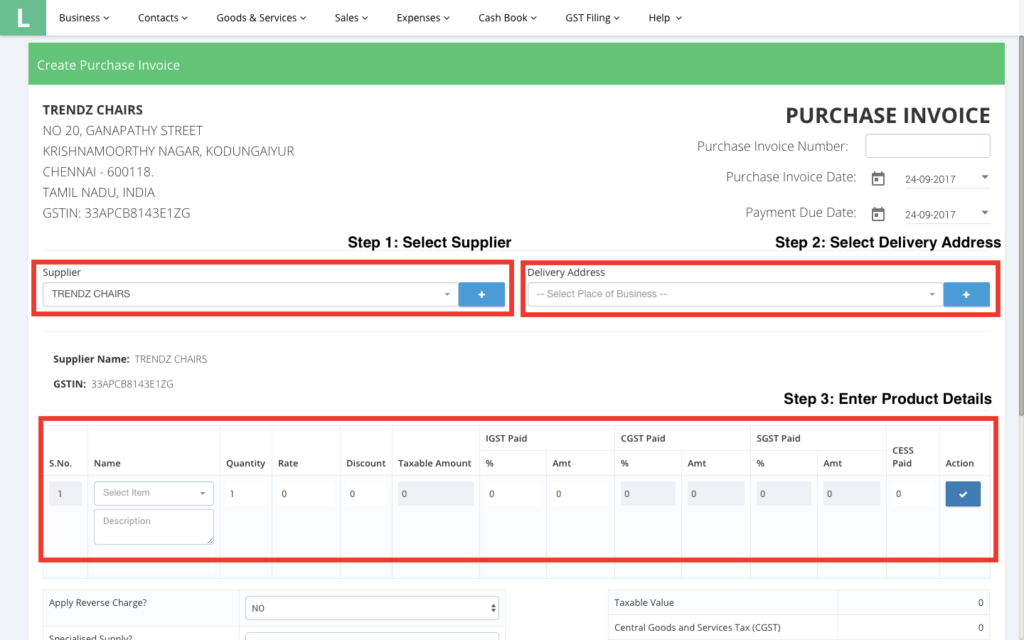
To create a purchase invoice, click on Expenses -> Create Purchase Invoice. In the page, click on the Supplier drop-down and select the supplier. In the delivery address, select the address where the supply was delivered.
 Creating a Purchase Invoice
Once the supplier and recipient details are updated, update the purchase details. In the name, enter the name of the product and description. There is no requirement to enter the item in the Goods and Services master. Even if a product is not included, you can enter the name and click on the item to add the same and create a purchase invoice.
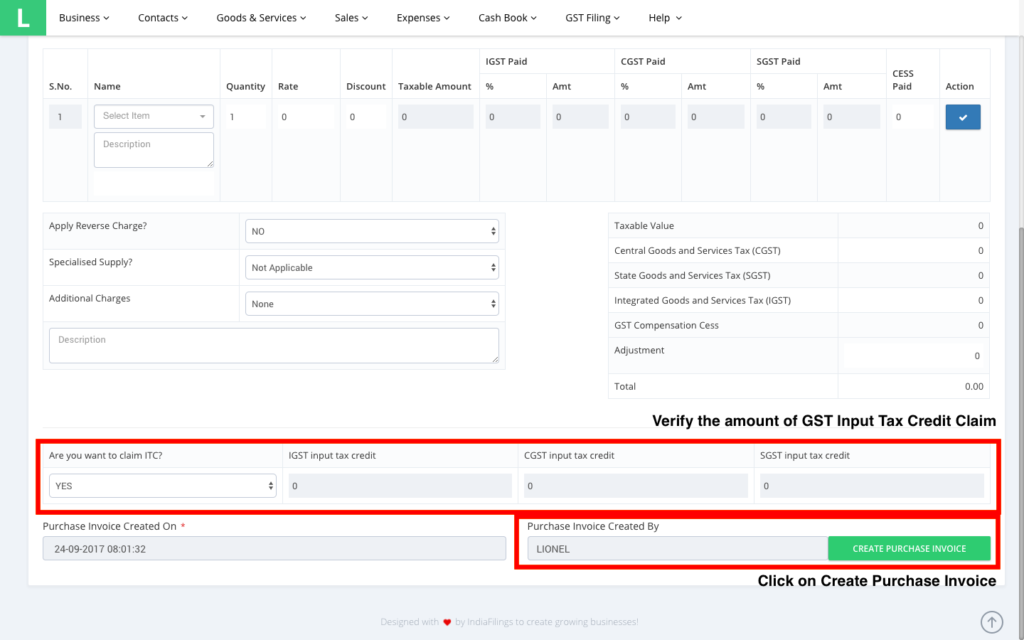
Once all the details are entered, verify the amount of GST input tax credit claim. The details of input tax credit claim are automatically populated by LEDGERS. If the details entered in the purchase invoice is OK, click on the Create Purchase Invoice button to record the expense.
Creating a Purchase Invoice
Once the supplier and recipient details are updated, update the purchase details. In the name, enter the name of the product and description. There is no requirement to enter the item in the Goods and Services master. Even if a product is not included, you can enter the name and click on the item to add the same and create a purchase invoice.
Once all the details are entered, verify the amount of GST input tax credit claim. The details of input tax credit claim are automatically populated by LEDGERS. If the details entered in the purchase invoice is OK, click on the Create Purchase Invoice button to record the expense.
 Verify Input Tax Credit