
Chris John
Expert
Published on: Sep 16, 2026
CBIC Sanchar
The Directorate of Data Management (DMM) successfully launched the CBIC Sanchar application on the Central Board of Indirect Taxes and Customs (CBIC) DMM portal in January 2019. This innovative tool collects feedback on tax recoveries based on analytical reports made by the Directorate General of Analytics and Risk Management (DGARM). These reports undergo regular review and monitoring by DGARM Officers, continuously informing the Board of the outcomes. This article delves into the CBIC Sanchar application and its multifaceted features.
Overview
The DMM has expanded the scope of this application, providing CBIC with a digital platform to facilitate quick, easy, and effective communication. CBIC Sanchar creates a seamless digital connection from the Board to all its formations down to the division level.
CBIC Sanchar includes four main independent applications:
- Analytical Reports of Directorates
- Key Performance Indicators
- General Communication
- Prosecution Management
These sets consist of specific modules, inspired by the pre-existing DGARM module. Users access these modules securely using One-Time Passwords (OTPs) sent to their registered mobile numbers. CBIC Sanchar ensures paper-free communication, allowing users to search and review reports using various document formats, including Text, Excel, and PDF.
In addition, Masterdesks offer essential details for effective report monitoring, allowing reminders and consolidating received reports. By streamlining these processes, CBIC Sanchar significantly saves time, effort, and costs while promoting an eco-friendly approach. Every CBIC Official is encouraged to fully utilize CBIC Sanchar to enhance digital communication and e-Governance within the CBIC.
Process
Below is a detailed process to operate CBIC Sanchar and its various applications.
Access to CBIC Sanchar
The following procedure outlines how to access the CBIC Sanchar application.
Step 1: Visit the CBIC-DMM portal and select the CBIC Sanchar option from the top tab. The login page will appear next.
 Step 2: Click the Login icon. Once logged in with valid credentials, the Masterdesk for CBIC Sanchar will be displayed.
 Note: Users can change the Masterdesk language by selecting options on the top-right of the page.
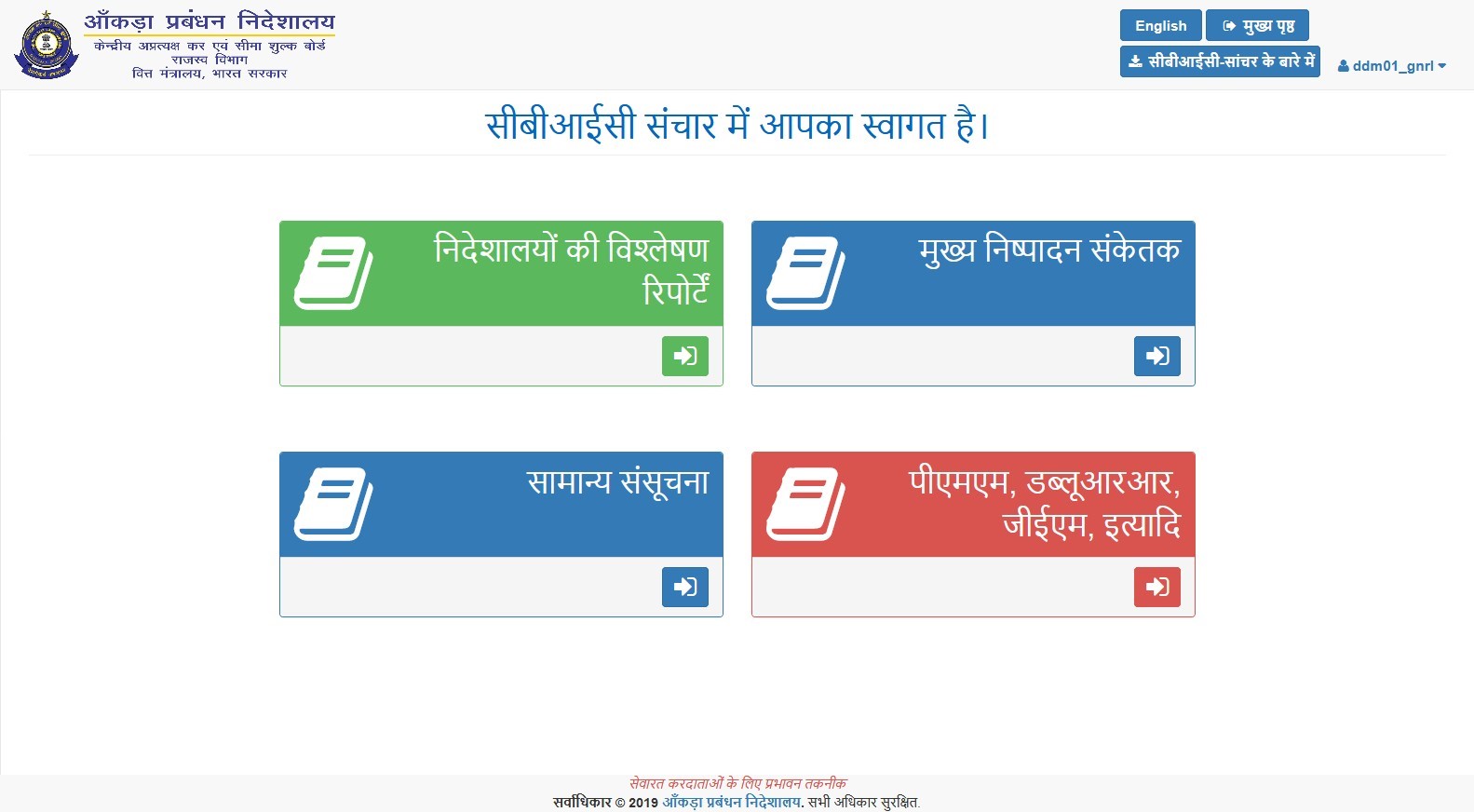 Step 3: Click the Enter icon below any of the four applications under CBIC Sanchar. A pop-up will appear, providing a brief introduction to the modules in that particular application. Click the green arrow icon to enter or the red arrow icon to return to the CBIC Sanchar Masterdesk.
Analytical Reports of Directorates (ARD)
The ARD application allows the CBIC Directorates to disseminate analytical reports to field formations for necessary actions. Real-time monitoring and feedback are its key features. Here's how to use the application with DGARM-specific instructions.
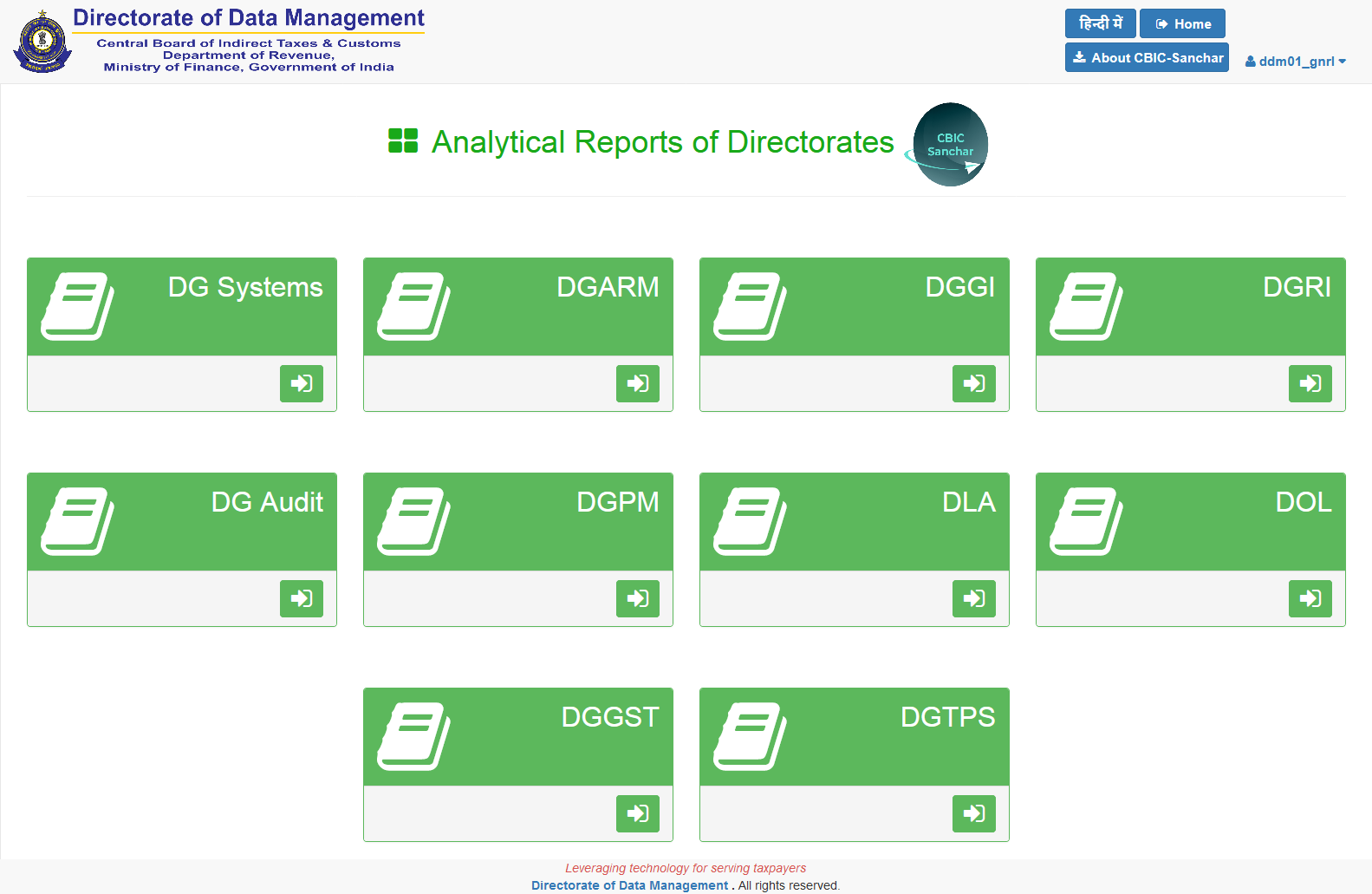
Step 1: Select the Analytical Reports of Directorates option on the Masterdesk and click the green arrow after reviewing the application introduction.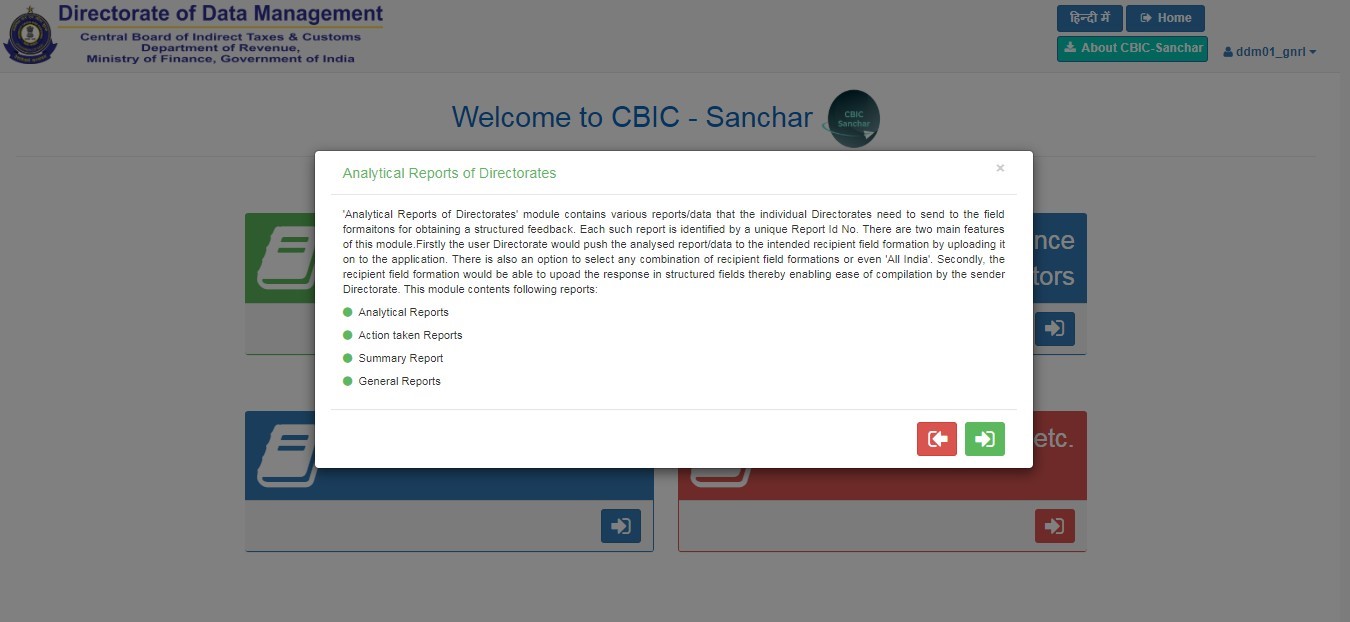 Step 2: The page will display 10 distinct icons, each representing a Directorate. Users can upload reports, and field Directorates can download them to initiate protocol. Click the green arrow to proceed.
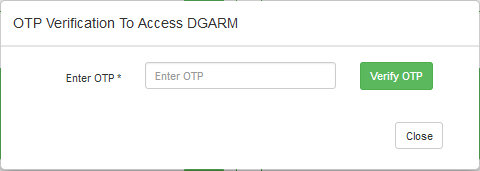
 Step 3: A pop-up requesting an OTP will be displayed. The OTP is sent to the user's registered mobile number.
 Step 4: After entering the OTP, the Masterdesk for the Analytical Reports application appears with various options.
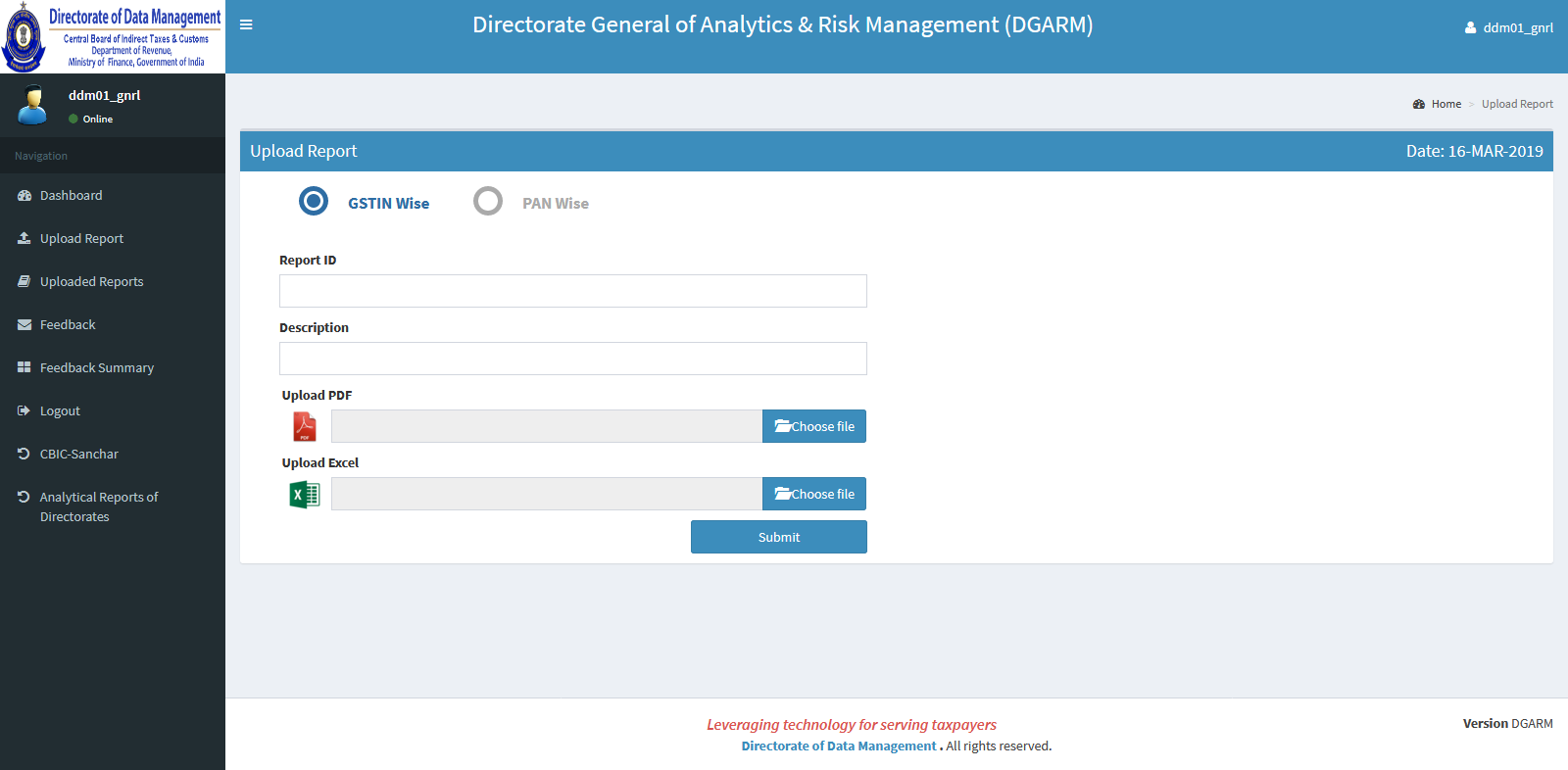
 Step 5: Select the Upload Report option to upload a report in PDF format as a description, and Excel format for data. Click the Submit icon afterward.
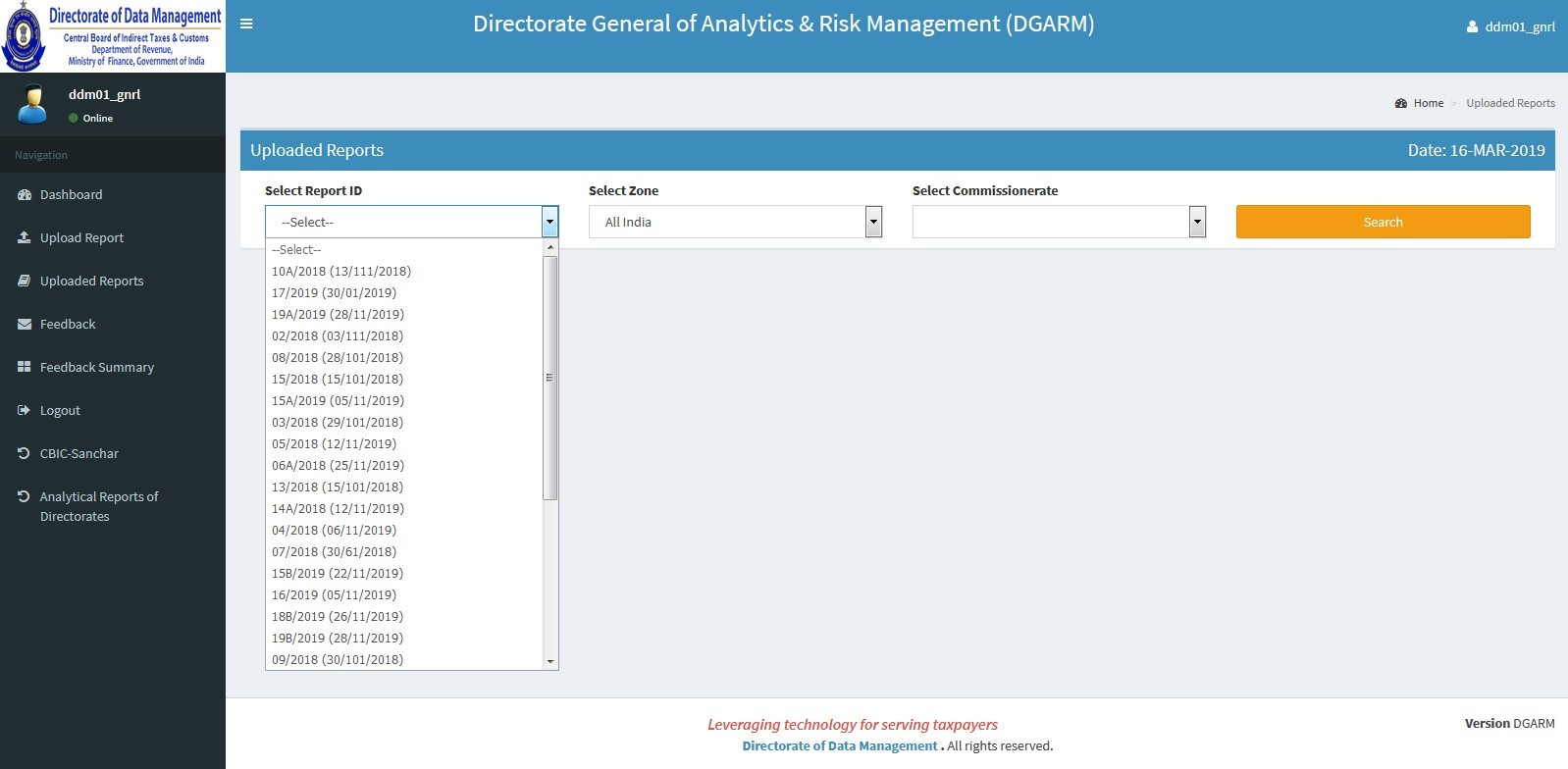
 Step 6: View uploaded reports and select any to view its contents.
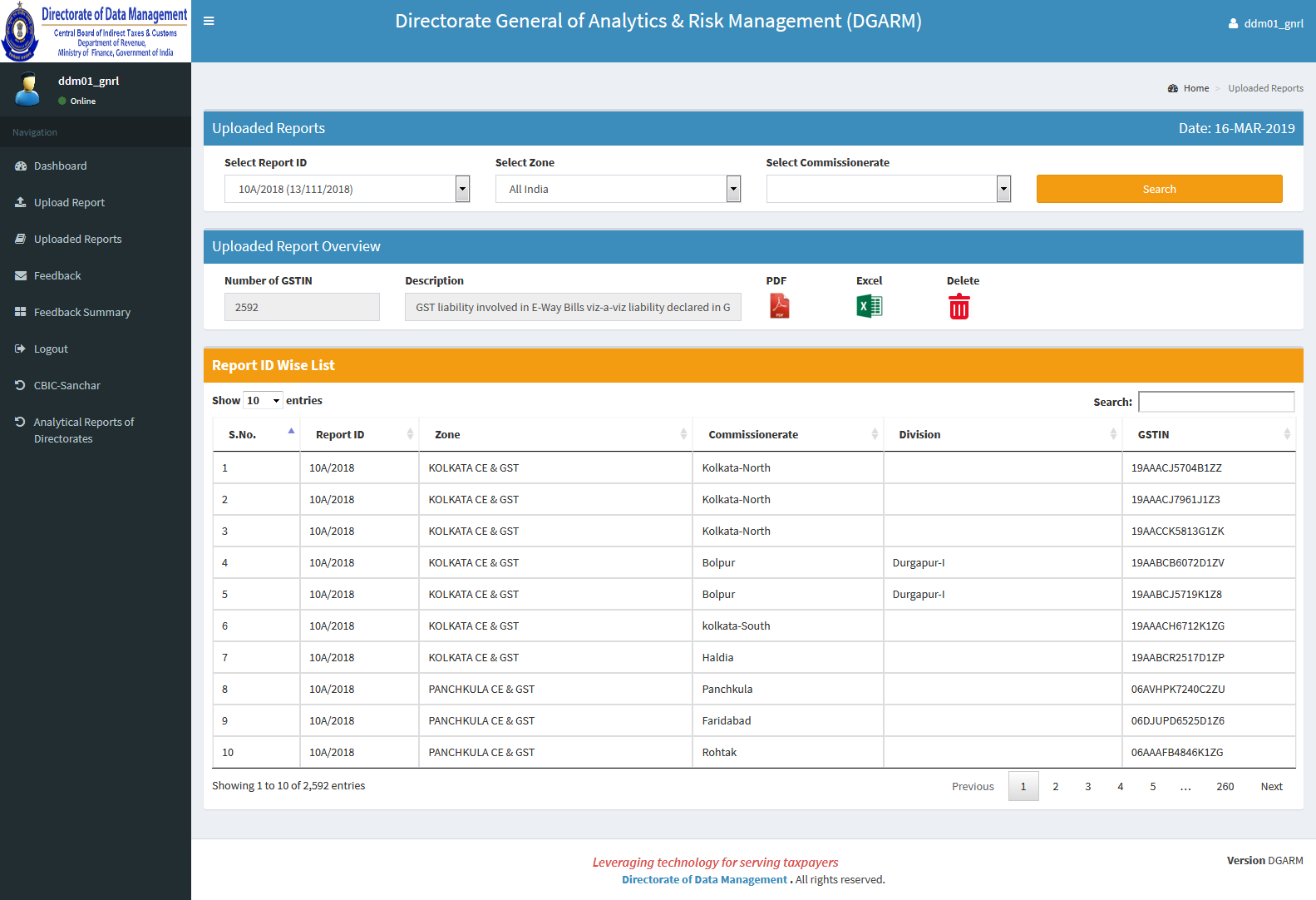
 Step 7: Click the Search tab to view GSTINs alongside their descriptions and data in Excel sheet format.
 Step 8: Feedback on every report can be viewed by the Director.
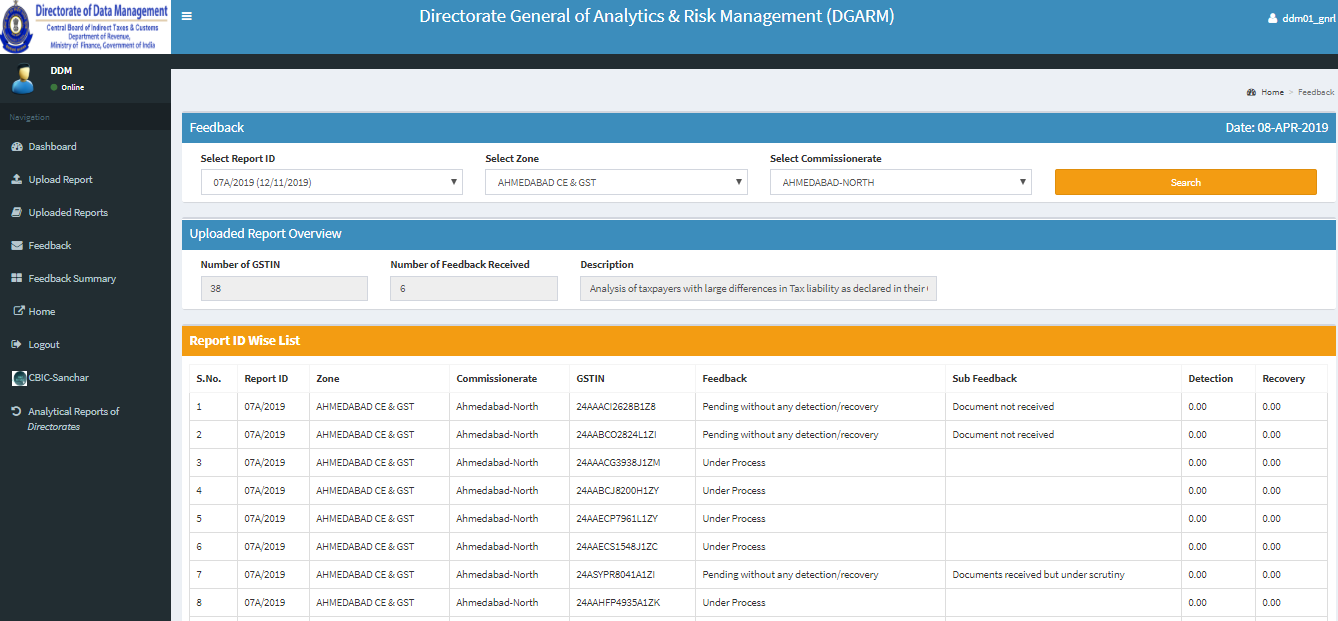 Step 9: Summaries of feedback from Field Directorates appear below.
 Step 10: Click the Received Reports option, enabling recipients to upload feedback regarding individual GSTINs under their jurisdiction.
 Step 11: Click the Upload Feedback icon. Recipients must upload feedback by selecting choices from a drop-down menu.
Key Performance Indicators
The KPI application reviews 9 critical areas within the Department, including revenue, anti-smuggling, and logistics. It compiles data into a Monthly Performance Report (MPR).
Step 1: Click the Key Performance Indicators application blue entry icon. Step 2: The Masterdesk displays options for major reports like MPR, MSR, MRR, and FMR.
 Step 3: Select Monthly Performance Report (MPR) to view components by choosing domain stream, month, year, and jurisdiction.
 Step 4: Parts of MPR (Part-I, II, III) allow viewing and downloading by clicking respective icons.
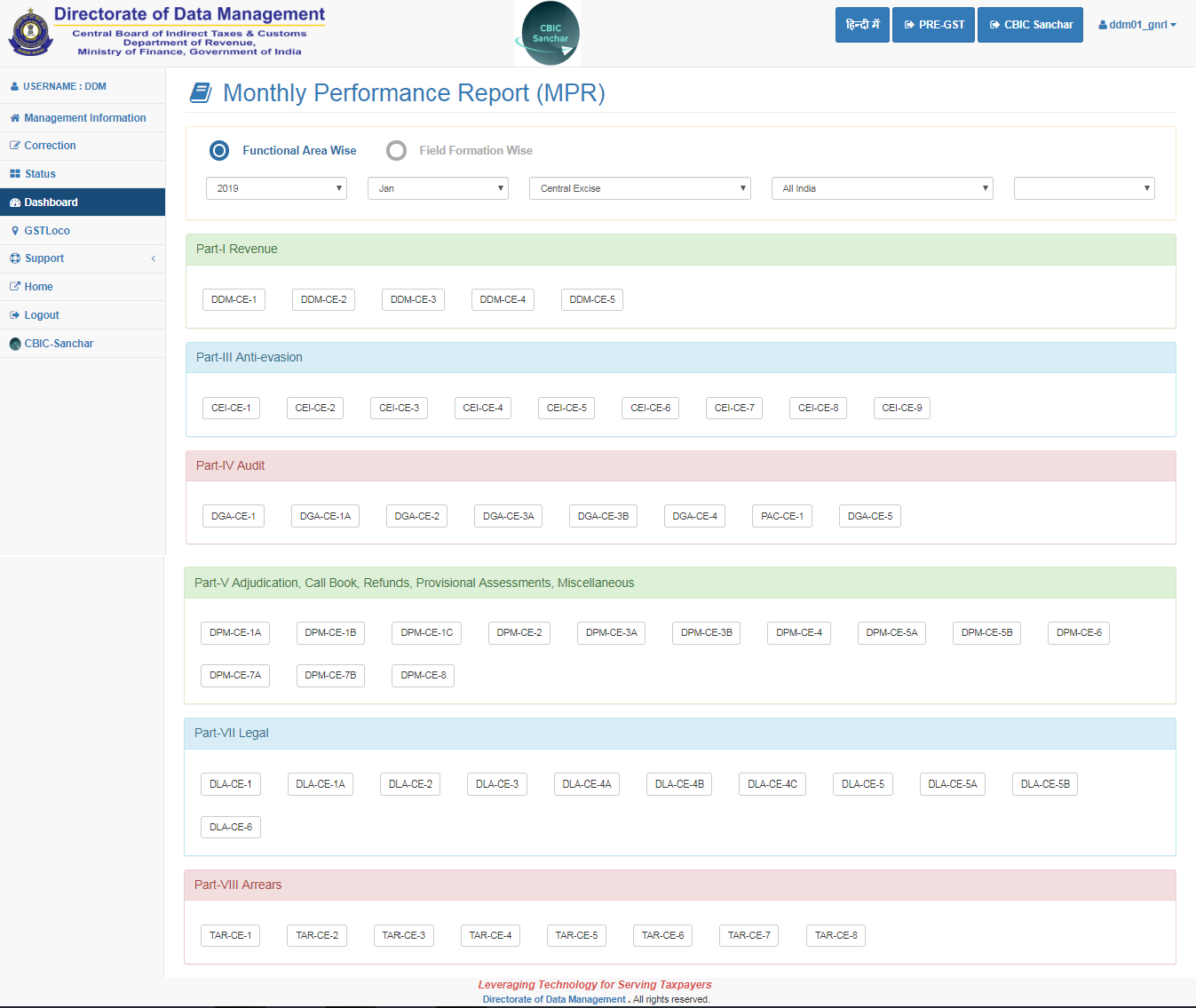 Step 5: Uploading jurisdiction-specific data for MPR components is also possible.
 Step 6: Users can correct uploaded data by requesting it from the report's Functional Owner.
 Closure of Advance Authorizations Procedure ensures the smooth handling of data and jurisdiction-specific entries.Step 7: MPRs' status verification by viewing any jurisdiction's uploaded report status.
 Step 8: View uploaded Field Formation MPRs status for assurance.
 Step 9: Components of the Monthly Summary Report (MSR), viewable and downloadable through respective icons.
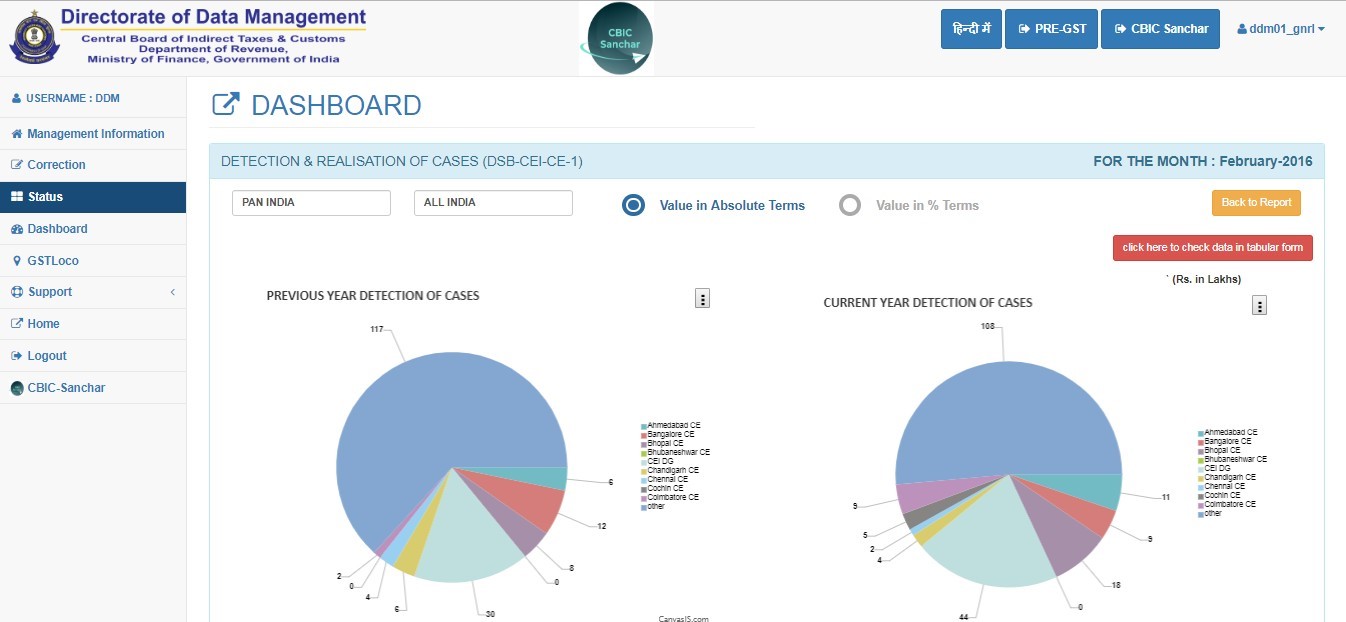
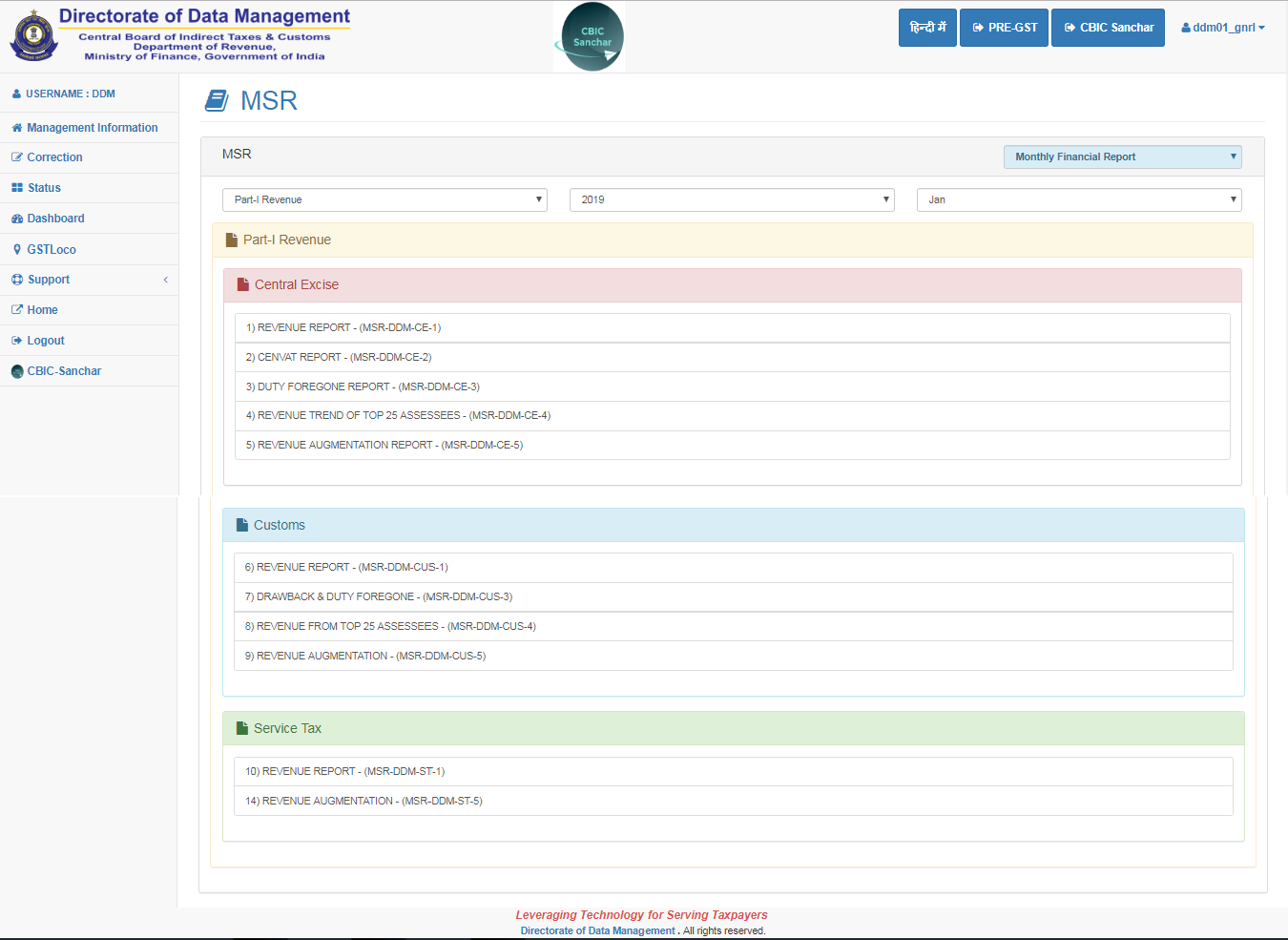 Step 10: Dashboard components can be viewed graphically based on a selected jurisdiction.
 Sync PAN with DigiLocker for integrated data and identity management efficiency.Step 11: Select Dashboard for MPR components' graphical views concerning specific jurisdictions.
 Step 12: Click Zone Wise Break Up for graphical breakdowns of MPR components by jurisdiction.
 Step 13: In Helpdesk, users can raise queries by entering necessary information, generating a Ticket Number after submission.
 Step 14: View the summary and status of queries sent to Helpdesk.
General Communication
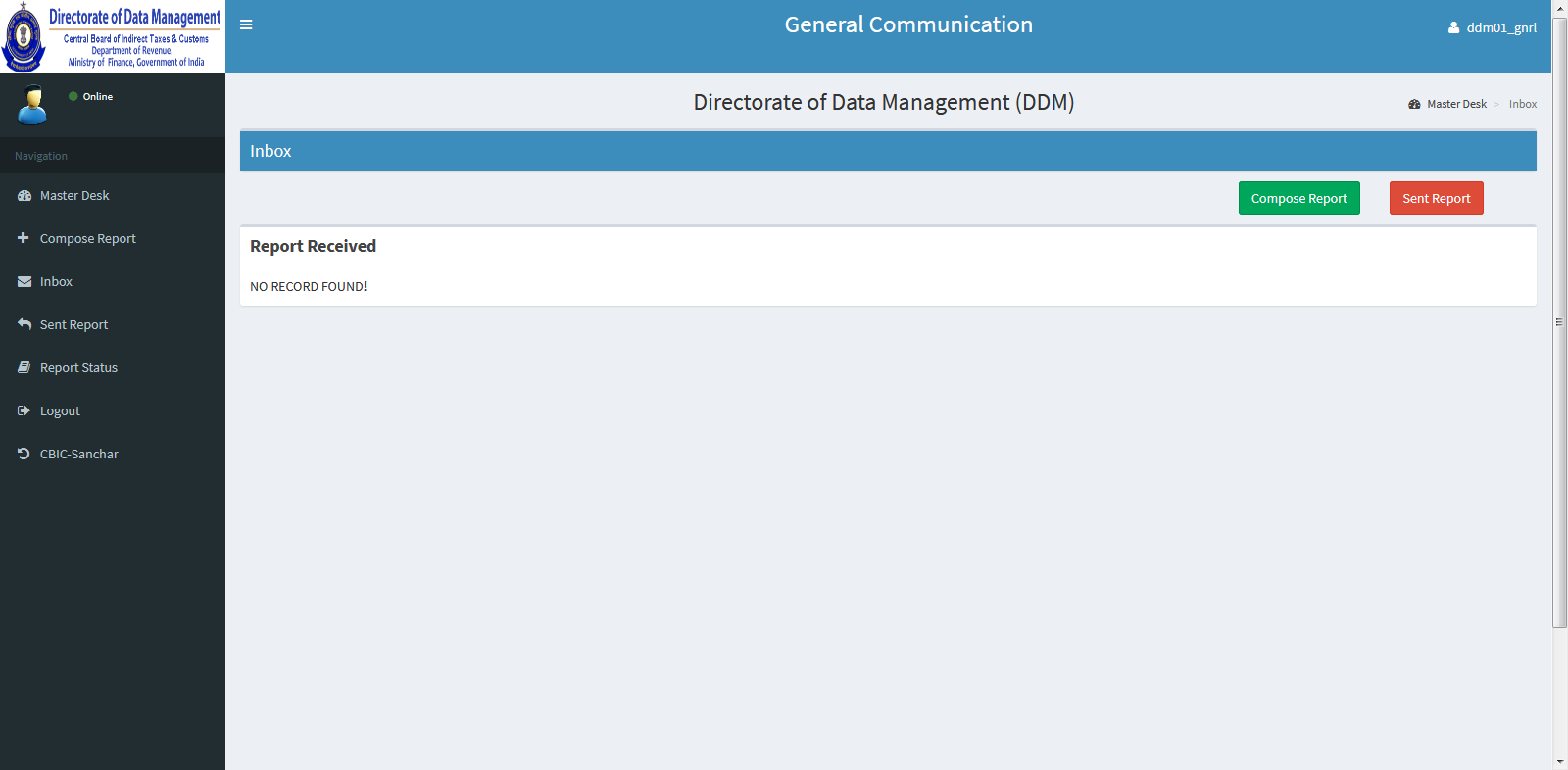
This application provides CBIC digital channels for streamlined communication, allowing two-way interaction and Masterdesk data for outgoing and pending reports.
Step 1: Click the blue entry icon for General Communication, where a pop-up will offer a brief introduction of the modules. Trademark Renewal in Vijayawada aligns well with streamlined communication, ensuring legal compliance.Step 2: The Masterdesk appears, displaying statuses for communication as Sender or Recipient.
 Track GST Status within communication modules for enhanced monitoring and reporting.Step 3: Select Compose Report to create a new report by filling in necessary details like File number, Subject, Text, and uploading documents by choosing recipients.
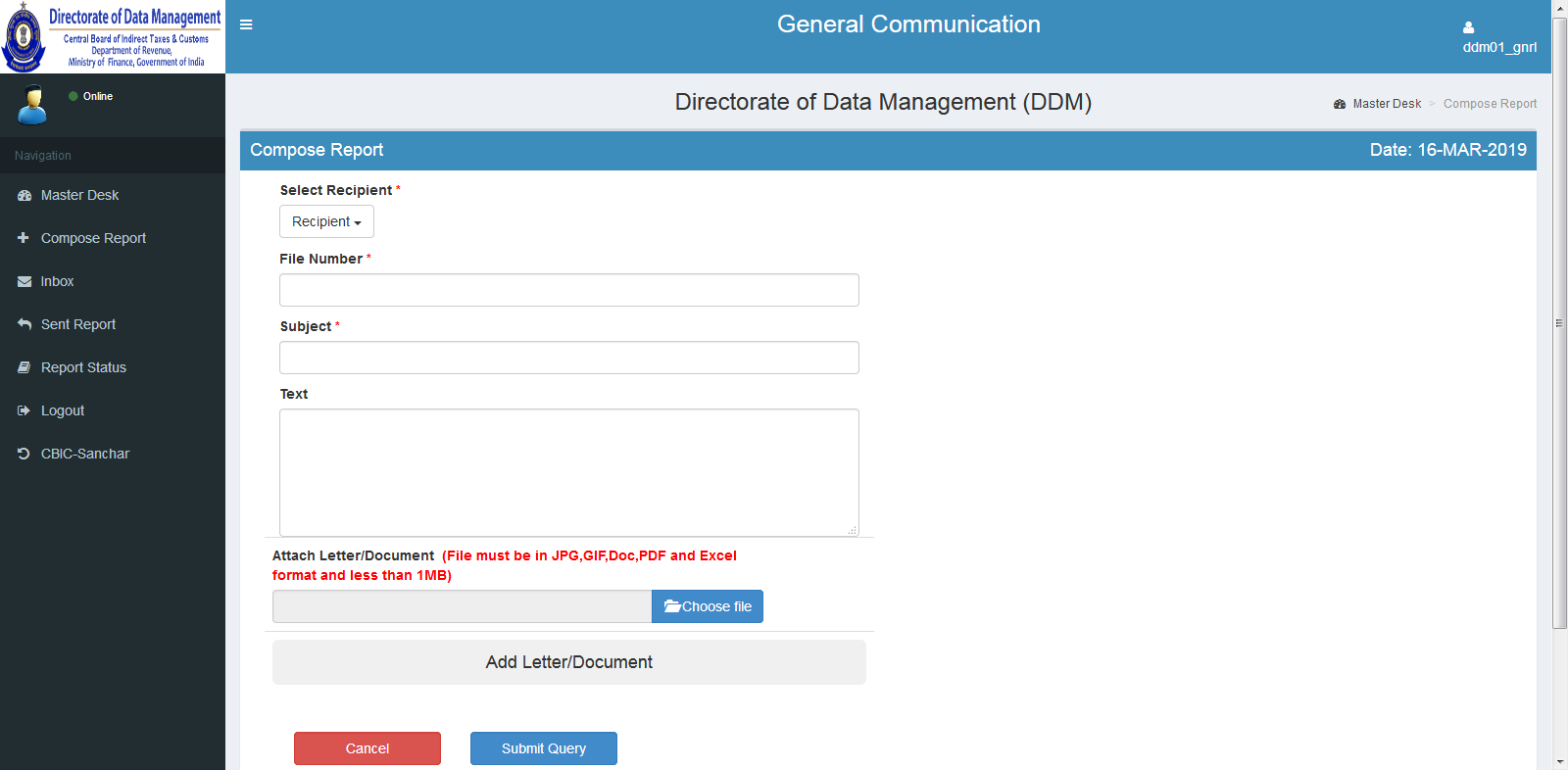 Step 4: View recipients of communication from the Field Formations/Directorates drop-down menu.
 Step 5: View information or feedback on reports received from Field Formations/Directorates.
 Step 6: Select the relevant Report ID Number from the drop-down list to view the status of that particular report.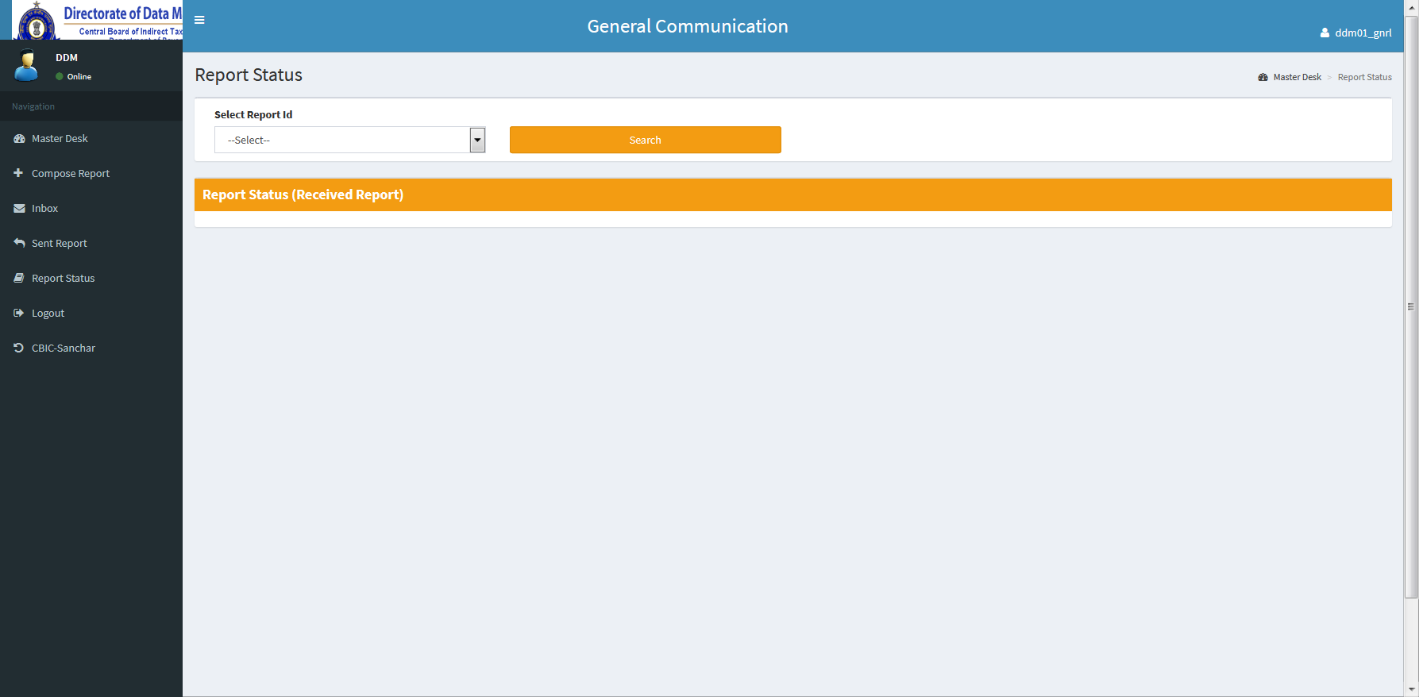
PMM, TDOTS and WRR
The PMM, TDOTS, and WRR applications manage crucial departmental functions at various judicial levels, including High Courts and the Supreme Court, and monitor Refund reports weekly. The primary applications are:
- Prosecution Management Module
- Tax Disputes Online Tracking System
- Weekly Refund Report
- Government eMarketplace
- Audit Efficiency
 Expedited Trademark Registration helps in faster handling of legal submissions within these modules.Step 2: Access the required application on the Masterdesk by clicking the red entry icon.
Prosecution Management Module (PMM)
Step 3: The Masterdesk for the Prosecution Management Module (PMM) will appear.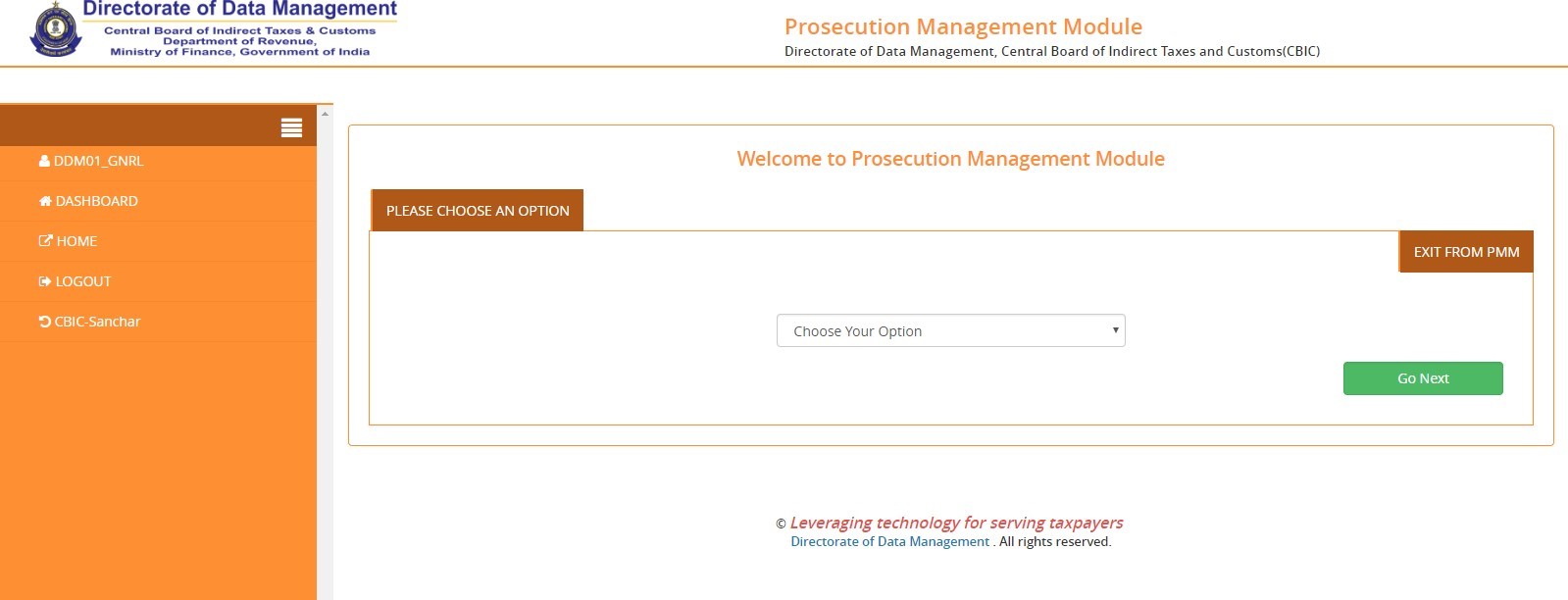 Download ePAN Card for convenience in compliance across the board.Step 4: Pre-defined reports concerning PMM are available on the subsequent page.
Weekly Refund Report (WRR)
Step 5: The Masterdesk for monitoring weekly refund status will appear on the next page. Step 6: A page will display an upload template for input in spaces 1 to 9, where relevant data can be entered.
 Business ITR Filing in Saharanpur aligns perfectly with financial accuracy in compliance management.Step 7: View Cumulative Reports of Refunds processed/sanctioned weekly on the displayed page.
Tax Disputes Online Tracking System (TDOTS)
Step 8: The TDOTS Masterdesk monitors pending tax disputes at various levels such as Commissioner, CESTAT, and higher courts. Step 9: Pending tax dispute data from Field Formations is displayed on the next page.
Audit Efficiency
Step 10: The Masterdesk developed for Audit Efficiency helps ensure adherence to the Audit Manual. Step 11: Upload the Audit Report prescribed for the selected module on the following page.
Government eMarketplace (GeM)
Step 12: The Government eMarketplace (GeM) module tracks departmental purchases through GeM. Step 13: Upload details of payments for GeM purchases made by Field Formations/Directorates.
 Avoid Mistakes in Company Registration for effective legal compliance in purchases and operational tasks.