IndiaFilings

Expert

Published on: Jul 30, 2026

Managing Customer & Generating Customer Reports - LEDGERS Guide

After adding a customer to your LEDGER, you will want to view customer details or edit or generate various types of customer reports. Viewing customer list and downloading customer list is very easy on LEDGERS

GST Software. In this guide, we look at the process for accessing your customer list, downloading customer list and editing a customer.

Accessing Customer List

You can access your customer list by selecting Contacts -> Customers -> Manage Customers.
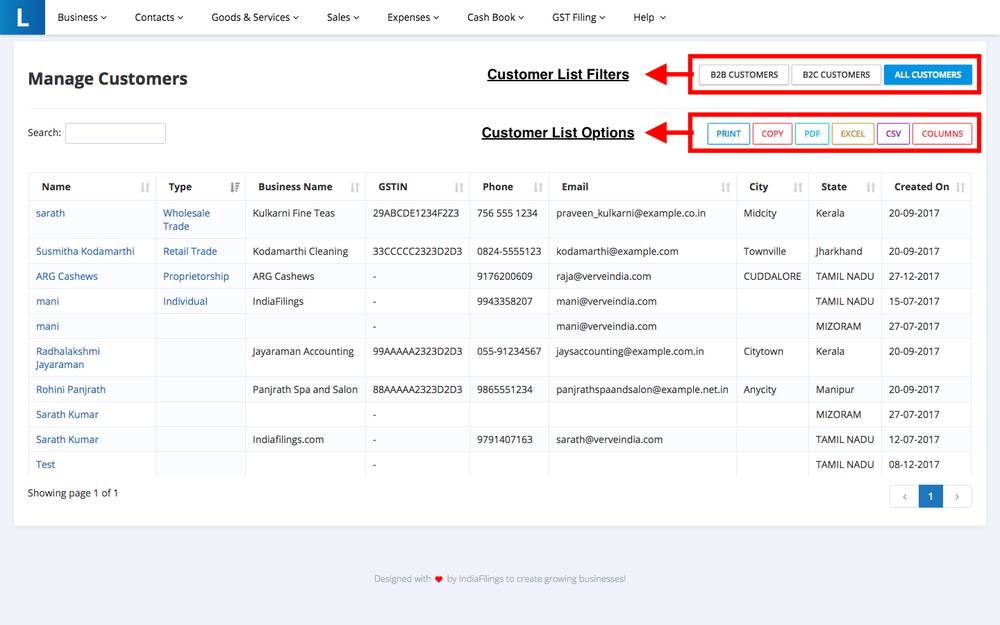
Managing Customers - LEDGERS Software Managing Customers - LEDGERS Software The Customer Management feature has in-built features like customer list filter and customer list options.

Customer List Filters

You can use the customer list filter to toggle between:

  • All Customers
  • B2B Customers
  • B2C Customers

In case any customer account is updated with a GSTIN, then the customer will be classified under B2B customer. All customers without GSTIN will be classified under B2C Customers.

Customer List Options

In addition to the filters, you can use the options to perform various functions quickly.

  • Print - Prints the customer list displayed
  • Copy - Copies the data presented in the table. You can paste the data into a spreadsheet like Excel.
  • PDF - Allows download of the list presented on the screen in PDF format.
  • Excel - Allows download of the list presented on the screen in Excel format.
  • CSV - Allows download of the list presented on the screen in CSV format.
  • Columns - You can modify the columns presented on screen or on the downloaded report using columns.

Editing Customer Account

You can easily edit a customer account by double-clicking on any of the customer name. On double-clicking, the edit pop-up would be displayed as below. Update the data and click Update Customer to complete editing a customer account.
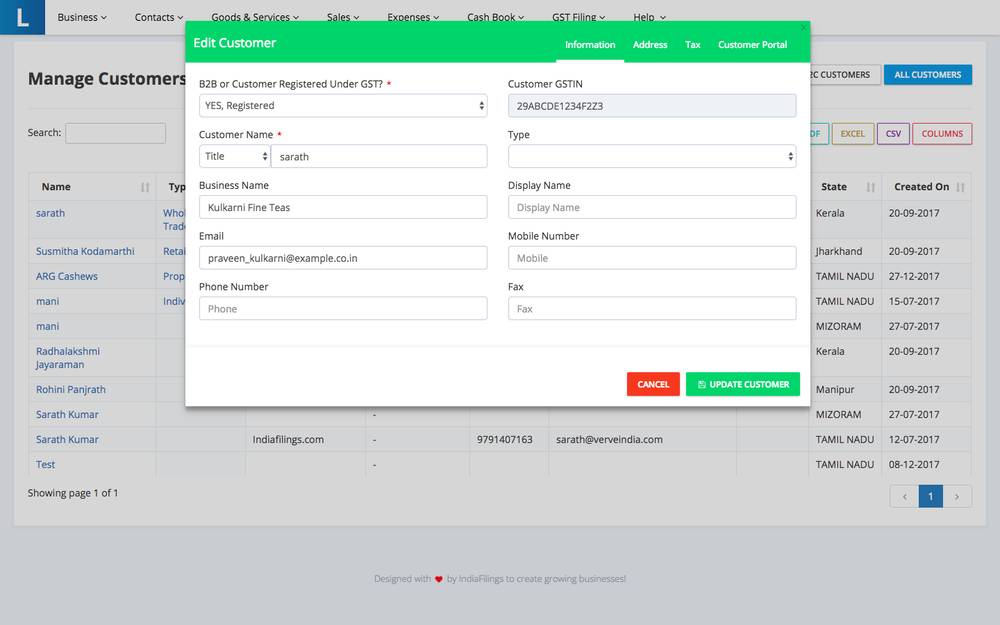
Edit Customer - LEDGERS Software Edit Customer - LEDGERS Software
Back to Learn

Frequently Asked Questions

Common questions about Manage Customers & Reports with LEDGERS Software.

To access the customer list in LEDGERS, navigate to Contacts -> Customers -> Manage Customers. This will display the complete list of customers added to your LEDGERS account.
LEDGERS provides three filters for the customer list - All Customers, B2B Customers, and B2C Customers. Customers with a GSTIN number are classified as B2B Customers, while those without a GSTIN are classified as B2C Customers.
LEDGERS allows you to download the customer list in various formats - PDF, Excel, and CSV. You can find these options under the Customer List Options on the Manage Customers page.
Yes, you can customize the columns displayed in the customer list. Under the Customer List Options, there is a 'Columns' option that allows you to select or deselect the columns you want to display or hide.
To edit a customer's details, simply double-click on the customer's name in the customer list. This will open the 'Edit Customer' pop-up, where you can make the necessary changes and click 'Update Customer' to save the changes.
Yes, LEDGERS provides a 'Print' option under the Customer List Options, which allows you to print the current customer list displayed on the screen.
When editing a customer's details, you can modify various information such as the customer's name, email address, phone number, billing address, shipping address, and GSTIN number (if applicable).
Customers are classified as B2B or B2C based on whether they have a GSTIN number or not. Customers with a GSTIN number are classified as B2B Customers, while those without a GSTIN are classified as B2C Customers.
Yes, LEDGERS provides a 'Copy' option under the Customer List Options, which allows you to copy the data displayed in the customer list table. You can then paste this data into a spreadsheet or other applications.
Currently, LEDGERS offers filters based on customer type (B2B or B2C). However, it does not provide filters based on other criteria like location, date added, or customer name. If you need to filter the list further, you can download the customer list in Excel or CSV format and use the filtering capabilities of those applications.